If your laptop has become slow, noisy, or starts overheating after a few months of use, the problem may not always be old hardware. In many cases, dust, dirt, and poor maintenance are the real reasons behind reduced performance. Learning how to clean your laptop for better performance is one of the easiest and most affordable ways to improve speed, reduce heat, and extend your laptop’s lifespan.
Many people spend money upgrading RAM or buying a new SSD before trying basic cleaning and maintenance. A clean laptop runs cooler, performs better, and lasts much longer. Whether you use your laptop for work, gaming, studying, or everyday browsing, regular cleaning can make a noticeable difference.
In this guide, you will learn how to clean your laptop safely, what tools you need, and the best maintenance tips to keep it running like new.
Why Cleaning Your Laptop Improves Performance
Dust slowly builds up inside every laptop. Over time, it blocks air vents, sticks to cooling fans, and reduces airflow. When the cooling system cannot remove heat properly, the processor becomes too hot. Modern laptops automatically reduce processor speed to prevent damage. This process is called thermal throttling.
As a result, your laptop becomes slower, applications take longer to open, games lose FPS, and the fan becomes much louder than usual.
Cleaning your laptop helps by improving airflow, lowering temperatures, reducing fan noise, and allowing the processor to perform at its full speed.
Signs Your Laptop Needs Cleaning
Before opening your laptop, look for these common warning signs.
Your laptop becomes hot within a few minutes of use.
The cooling fan runs constantly at high speed.
Programs open slowly even though your laptop has decent hardware.
Games suddenly lose performance.
The keyboard feels warm.
Air coming from the vents is very weak.
Unexpected shutdowns happen during heavy tasks.
If you notice several of these symptoms, it is probably time to clean your laptop.
Tools You Need
Cleaning a laptop does not require expensive equipment. Most of the items are affordable and easy to find.
You will need:
Soft microfiber cloth
Compressed air can
Soft anti static brush
Cotton swabs
Isopropyl alcohol with at least 90 percent purity
Small screwdriver set
Cleaning gel for keyboard if available
Having the right tools makes cleaning safer and prevents accidental damage.
Turn Off Your Laptop First
Before cleaning anything, completely power off the laptop.
Disconnect the charger.
Remove all USB devices.
If your laptop has a removable battery, take it out.
Hold the power button for about ten seconds to discharge any remaining electricity.
This simple step protects internal components while cleaning.
Clean the Laptop Screen
The screen collects fingerprints, dust, and oil every day.
Use a dry microfiber cloth to remove loose dust.
If fingerprints remain, slightly dampen the cloth with distilled water or screen cleaner.
Wipe gently using circular motions.
Never spray liquid directly onto the display because moisture can damage internal layers.
A clean screen not only looks better but also reduces eye strain.
Clean the Keyboard
The keyboard is one of the dirtiest parts of any laptop.
Turn the laptop upside down and gently shake out loose crumbs.
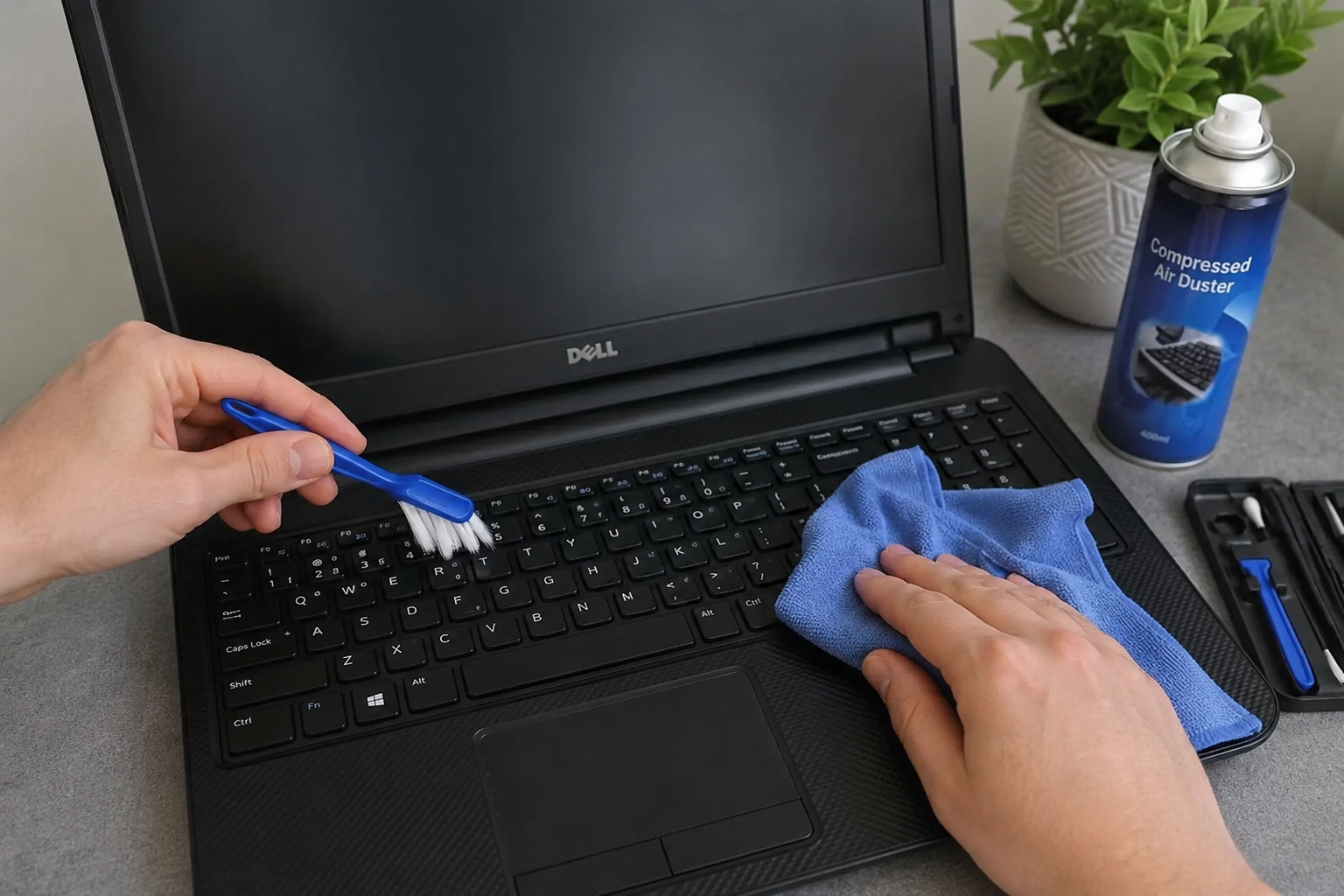
Use compressed air between the keys.
Brush away dust using a soft brush.
Wipe each key with a microfiber cloth lightly dampened with isopropyl alcohol.
Allow the keyboard to dry completely before turning on the laptop.
Keeping the keyboard clean also prevents sticky keys and improves typing comfort.
Clean the Touchpad
The touchpad collects fingerprints, sweat, and dirt throughout the day.
Use a microfiber cloth with a small amount of isopropyl alcohol.
Wipe gently until all marks disappear.
Avoid using excessive liquid because moisture can seep into the laptop.
A clean touchpad provides smoother navigation and better responsiveness.
Clean the Air Vents
Air vents are essential for cooling.
Use compressed air to remove dust from the ventilation openings.
Hold the fan blades in place if you can see them. This prevents them from spinning too fast during cleaning.
Never insert sharp objects into the vents.
Improved airflow helps reduce internal temperatures immediately.
Clean the Cooling Fan
If you are comfortable opening your laptop, cleaning the cooling fan provides one of the biggest performance improvements.
Remove the back cover carefully.
Locate the cooling fan.
Use compressed air to remove dust.
Use a soft brush to clean stubborn dirt.
Prevent the fan from spinning while blowing air.
Once clean, reinstall the back cover securely.
Removing built up dust from the fan can reduce temperatures by several degrees.
Remove Dust from Internal Components
Dust does not only collect on the fan.
It also settles on the motherboard, memory modules, heat sink, and storage drives.
Use compressed air and a soft brush to gently remove dust without touching sensitive electronic parts.
Never use a household vacuum cleaner because static electricity may damage components.
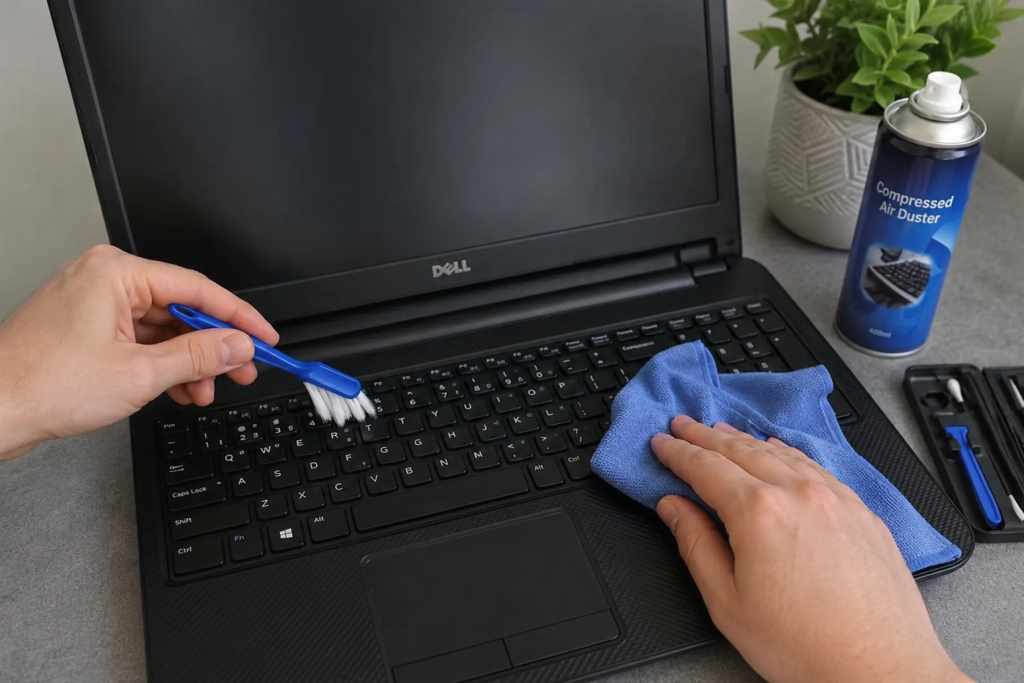
Clean the Laptop Exterior
The outside of your laptop deserves attention too.
Use a microfiber cloth with a small amount of isopropyl alcohol.
Clean the lid, sides, ports, and bottom panel.
Cotton swabs work well for USB ports and headphone jacks.
Keeping the exterior clean improves appearance and prevents dirt from entering the laptop.
Organize Your Software Too
Physical cleaning is only part of laptop maintenance.
Digital cleaning also helps improve performance.
Delete unnecessary files.
Empty the recycle bin.
Remove unused applications.
Disable startup programs you no longer need.
Run Windows Disk Cleanup.
Scan for malware using Windows Security.
Update Windows and device drivers.
These simple software maintenance steps help your laptop run faster after physical cleaning.
Check Storage Space
A nearly full storage drive slows down Windows significantly.
Try to keep at least twenty percent of your storage free.
Delete duplicate files.
Move large videos and photos to external storage.
Use cloud storage if available.
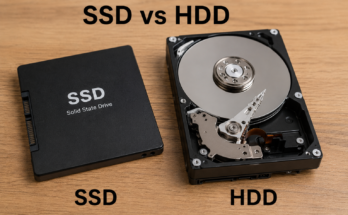
If your laptop still uses an HDD, upgrading to an SSD provides one of the biggest speed improvements.
Replace Thermal Paste When Necessary
If your laptop is several years old and still runs hot after cleaning, dried thermal paste may be the problem.
Thermal paste transfers heat from the processor to the cooling system.
Over time it dries out and becomes less effective.
Replacing thermal paste can lower temperatures and improve sustained performance.
If you are not experienced with laptop repairs, ask a professional technician to perform this upgrade.
Keep Your Laptop in a Clean Environment
Preventing dust is easier than removing it.
Avoid placing your laptop directly on carpets or blankets.
Use it on a hard flat surface.
Keep pets away if possible because pet hair easily clogs cooling systems.
Clean your workspace regularly.
A cleaner environment means less dust enters your laptop.
How Often Should You Clean Your Laptop
The cleaning schedule depends on your environment.
If you work in a clean office, clean your laptop every six months.
If you have pets or live in a dusty area, clean it every three months.
Gamers and video editors who push their laptops harder should inspect cooling vents more frequently.
Regular maintenance prevents major performance problems before they appear.
Common Cleaning Mistakes to Avoid
Many people accidentally damage their laptops while trying to clean them.
Avoid these mistakes.
Never spray liquid directly onto the laptop.
Never use paper towels on the screen.
Do not use household glass cleaners.
Never use excessive force when removing keys.
Avoid using a vacuum cleaner inside the laptop.
Do not open the laptop if it is still connected to power.
Avoid using metal tools around internal components.
Following safe cleaning practices protects your device from unnecessary damage.
Extra Tips to Keep Your Laptop Fast
Besides cleaning, a few habits can maintain excellent performance.
Restart your laptop every few days.
Keep Windows updated.
Install software only from trusted sources.
Avoid opening too many browser tabs.
Use an SSD instead of an HDD whenever possible.
Upgrade RAM if your laptop supports it.
Monitor CPU temperature occasionally.
Use balanced or high performance power settings when needed.
These habits work together with regular cleaning to keep your laptop performing at its best.
Conclusion
Knowing how to clean your laptop for better performance is an essential skill for every laptop owner. Dust, dirt, and poor airflow can slow down even powerful laptops by causing overheating and thermal throttling. Fortunately, regular cleaning requires only a few basic tools and a little time.
Cleaning the screen, keyboard, cooling fan, air vents, and internal components helps improve airflow, reduce temperatures, lower fan noise, and extend the life of your device. Combined with regular software maintenance, these simple steps can make your laptop feel faster without spending money on expensive upgrades.
Make laptop cleaning part of your routine every few months, and you will enjoy smoother performance, quieter operation, and a healthier device for years to come.