Introduction
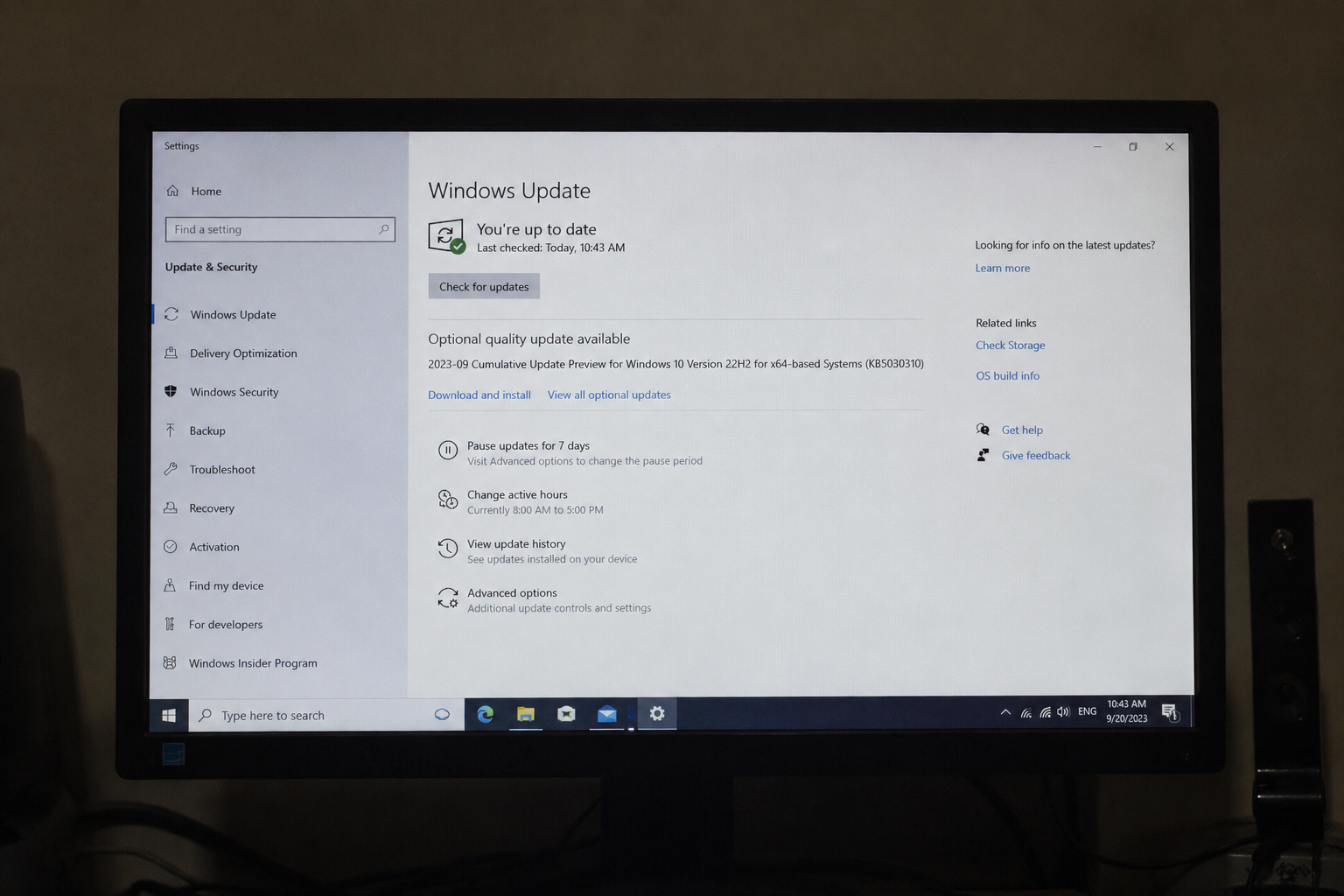
Windows Update is one of the most important features of the Windows operating system. It keeps your computer secure, improves performance, fixes bugs, and adds new features. However, many users experience Windows Update errors that stop updates from installing successfully. These errors can be frustrating, especially when you have no idea what caused them.
The good news is that most Windows Update problems are easier to fix than you might think. In many cases, you do not need to be a computer expert. By following a few simple troubleshooting steps, you can solve the problem and get your Windows updates working again.
In this guide, I will explain how to fix Windows Update errors using simple methods that anyone can follow. Whether you are using Windows 10 or Windows 11, these solutions can help you resolve the issue.
Why Windows Update Errors Happen
Before fixing the problem, it helps to understand why Windows Update errors appear in the first place.
Some common reasons include corrupted update files, internet connection issues, damaged system files, insufficient storage space, antivirus software interference, outdated drivers, or problems with Windows services.
Sometimes Microsoft servers may also experience temporary issues, causing updates to fail. In that case, waiting a few hours before trying again may solve the problem.
Restart Your Computer
One of the easiest solutions is simply restarting your computer.
Many update errors happen because Windows is waiting for a restart to complete previous installations. Restarting clears temporary files, refreshes system services, and often fixes small software glitches.
After restarting, open Windows Update again and check if the update installs successfully.
Check Your Internet Connection
A weak or unstable internet connection can interrupt Windows updates.
Make sure your WiFi or Ethernet connection is working properly. Try opening a few websites to confirm that your internet is stable.
If your connection is slow, restart your modem or router and then try updating Windows again.
Using a wired Ethernet connection can also improve download stability.
Free Up Storage Space
Windows updates require enough free storage to download and install files.
If your system drive is almost full, updates may fail.
Delete unnecessary files, empty the Recycle Bin, uninstall programs you no longer use, and remove temporary files using Disk Cleanup.
Having at least 20 GB of free storage is generally recommended for major Windows updates.
Run the Windows Update Troubleshooter
Microsoft includes a built in troubleshooter that automatically detects and fixes many update issues.
To use it:
Open Settings.
Go to System.
Select Troubleshoot.
Choose Other troubleshooters.
Click Run next to Windows Update.
Allow the troubleshooter to scan your system.
If it finds any problems, follow the recommended fixes and restart your computer.
This tool solves many common Windows Update errors automatically.
Restart Windows Update Services
Sometimes the Windows Update services stop working correctly.
Restarting these services can solve update failures.
Press Windows and R together.
Type services.msc and press Enter.
Locate the following services.
Windows Update
Background Intelligent Transfer Service
Cryptographic Services
Right click each service and select Restart.
After restarting the services, check for updates again.
Delete the SoftwareDistribution Folder
Windows stores downloaded update files inside the SoftwareDistribution folder.
If these files become corrupted, updates may continue failing.
Stop the Windows Update service.
Open File Explorer.
Navigate to:
C:\Windows\SoftwareDistribution
Delete everything inside the folder.
Restart the Windows Update service.
Windows will automatically recreate the folder and download fresh update files.
This method fixes many stubborn update errors.
Repair Corrupted System Files
Damaged Windows system files often cause update problems.
Fortunately, Windows includes tools that can repair these files automatically.
Open Command Prompt as Administrator.
Run this command:
sfc /scannow
Wait until the scan reaches 100 percent.
If corrupted files are found, Windows will repair them automatically.
After the scan finishes, restart your computer.
Use the DISM Tool
If the System File Checker cannot repair everything, use the Deployment Image Servicing and Management tool.
Open Command Prompt as Administrator.
Run the following command:
DISM /Online /Cleanup Image /RestoreHealth
This process may take several minutes.
Once complete, restart your PC and try Windows Update again.
DISM repairs the Windows image that SFC depends on.
Disable Antivirus Temporarily
Some third party antivirus programs can interfere with Windows Update.
Temporarily disable your antivirus software before installing updates.
Do not browse unsafe websites while your antivirus is disabled.
Once the update finishes successfully, turn your antivirus protection back on.
If disabling the antivirus solves the issue, check for updates to your antivirus software or contact the developer.
Check the Date and Time
Incorrect system date or time can prevent Windows Update from connecting to Microsoft’s servers.
Open Settings.
Go to Time and Language.
Enable automatic date and time.
Also enable automatic time zone detection if available.
Restart your computer afterward.
Disconnect External Devices
Sometimes connected hardware causes update conflicts.
Disconnect unnecessary USB devices such as printers, external hard drives, webcams, memory cards, and USB hubs.
Leave only your keyboard and mouse connected while installing updates.
Once the update completes, reconnect your devices.
Update Device Drivers
Outdated or incompatible drivers sometimes cause Windows Update errors.
Open Device Manager.
Look for devices with warning icons.
Update drivers from the manufacturer’s official website.
Graphics card, chipset, network adapter, and storage drivers are especially important.
Keeping drivers updated improves both system stability and update success.
Reset Windows Update Components
If nothing else works, resetting Windows Update components may completely fix the issue.
This process stops update services, renames update folders, and restarts the services with fresh settings.
Microsoft provides official scripts for advanced users, or you can manually reset each component through Command Prompt.
This method resolves many persistent update problems.
Install Updates Manually
If one specific update refuses to install, you can download it manually.
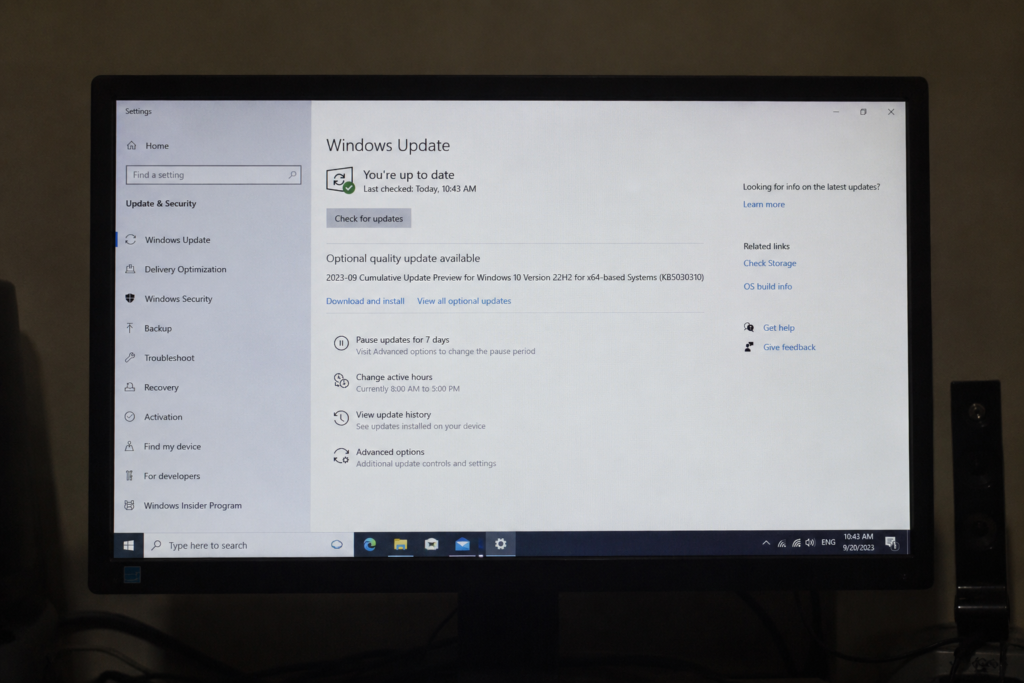
Open Windows Update and note the KB update number.
Visit the Microsoft Update Catalog website.
Search for the KB number.
Download the correct version for your operating system.
Run the installer manually.
This bypasses the automatic update process and often fixes installation failures.
Perform a Clean Boot
Sometimes background software creates conflicts with Windows Update.
A Clean Boot starts Windows using only essential Microsoft services.
Open System Configuration.
Disable non Microsoft startup services.
Restart your computer.
Try installing the update.
If it succeeds, enable services one by one until you identify the conflicting application.
Check Windows Update Error Codes
Windows often displays an error code when updates fail.
Examples include:
0x80070057
0x80073712
0x800f081f
0x8024402f
These codes help identify the exact cause of the problem.
Searching Microsoft’s official documentation using the error code can provide more specific solutions.
Keep Windows Updated Regularly
Many people delay updates for months.
Installing updates regularly reduces the chance of major update failures because each update is smaller and easier to install.
Make it a habit to check Windows Update every few weeks instead of waiting several months.
This also improves security and system performance.
Prevent Future Windows Update Errors
Preventing update issues is much easier than fixing them later.
Keep enough free storage on your computer.
Avoid shutting down your PC while updates are installing.
Maintain a stable internet connection.
Update hardware drivers regularly.
Run antivirus scans periodically.
Restart your computer every few days.
These simple habits greatly reduce update problems over time.
Conclusion
Windows Update errors can seem intimidating, but most of them can be fixed using simple troubleshooting steps. Restarting your computer, checking your internet connection, freeing storage space, repairing system files, resetting Windows Update components, and installing updates manually are all effective solutions.
The key is to work through each method patiently instead of trying random fixes. In most cases, one of these solutions will restore Windows Update and allow your system to download and install updates normally.
Keeping Windows updated is one of the best ways to protect your computer from security threats, improve stability, and enjoy the latest features. By following the tips in this guide, you can solve Windows Update errors quickly and keep your PC running smoothly for years to come.